


Supercell’s popular strategy game, Clash of Clans, continues to evolve with regular updates, new Town Hall levels, and fresh gameplay systems that keep the experience engaging for both new and veteran players.
Alongside these gameplay improvements, cosmetic features such as Village Scenery have become a popular way for players to personalise their home village. If you’re wondering how to switch or apply a different scenery in the game, here’s a simple and easy guide to help you do it.
CoC Home Village Scenery Overview
The Home village in Clash of Clans always had a regular classic scenery for many years. Without changes, it remained the only village scenery setting. In the Summer Update 2020 of Clash of Clans, another village scenery was introduced along with other updates.
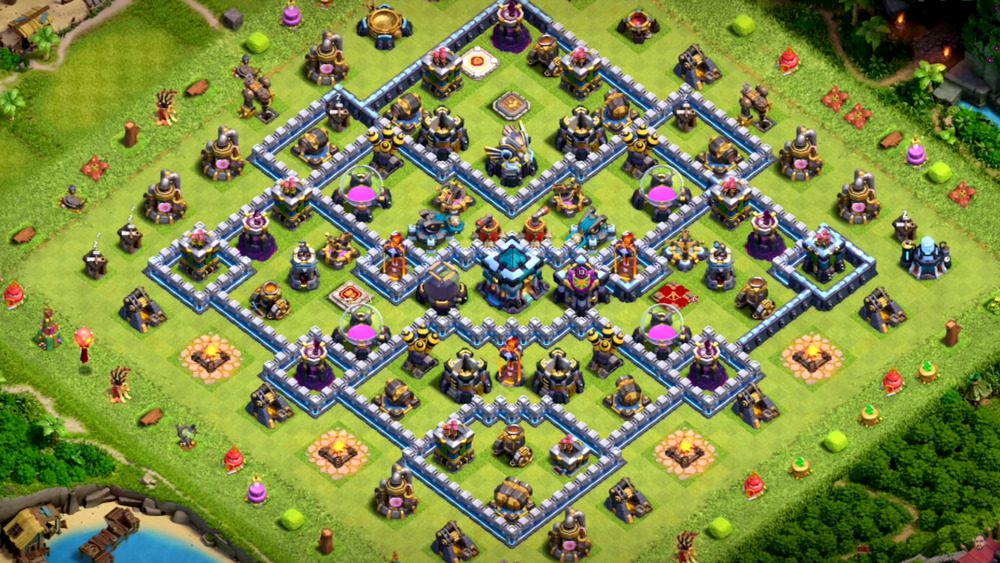
Nevertheless, the inclusion of the Scenery feature remained optional, requiring players to purchase from the in-game shop. Despite this, the popularity of the new system surged, owing to its unique concept introduced by Supercell.
The addition of Scenery not only allowed players to enhance the aesthetic appeal of their village but also represented a noteworthy improvement to the overall visual experience within the game. While this was popular, many players struggled to understand how to change their village scenery in Clash of Clans. The process is pretty simple, and continue reading to learn more.
Steps to change the Home village scenery in Clash of Clans
The process below will help you change the village scenery in Clash of Clans:
1. Purchase the Village Scenery
Purchase the new village scenery from the Shop, or in some cases, the Gold Pass will feature the scenery. In the shop, it might come as a separate item or with a bonus purchase included. You will have to pay to buy them. However, please note that you can not purchase it at any time. These come in the shop occasionally.
2. Change Scenery option
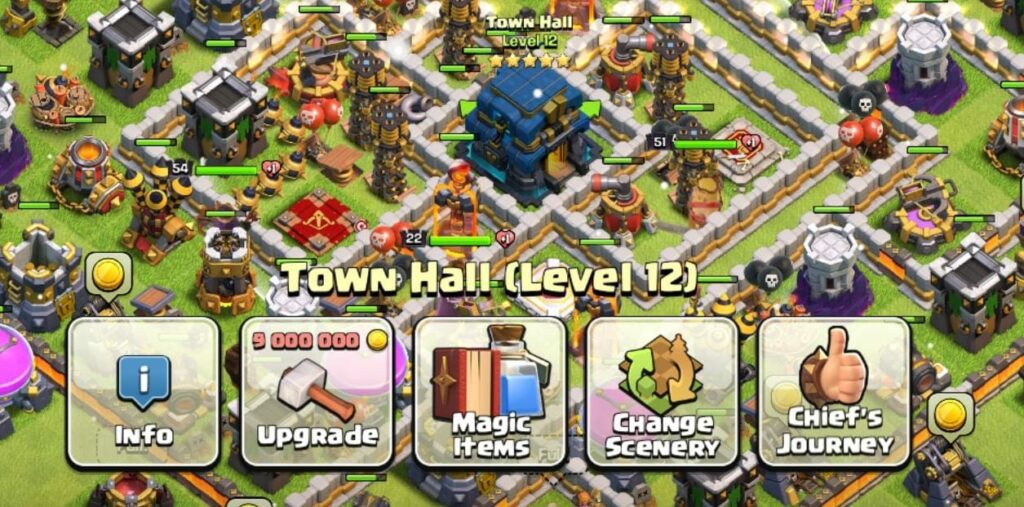
So, for the next step, head over to your Home Village screen and tap on your Town Hall. Among the options, you will be able to see an icon with the line Change Scenery. Tap on the icon, and you can see the current Classic scenery you own.
3. Select the scenery you want to set
Now, if you have already bought the scenery, you will be able to see two or multiple sceneries you can choose from, along with the Classic Home Village scenery.
Choose the latest scenery to switch to a different and new village look. You also have the option to randomize the sceneries you own to pick one among them without manual selection by clicking the Dice icon. To view the scenery before applying it, click on the Eye icon.
Since they have officially introduced CoC to the PC platform, you can also download and play the game on PC. To apply the scenery to your CoC PC account, you can follow the same steps mentioned above.
Read other related Clash of Clans articles:
Did you find the above steps mentioned to change the village scenery in Clash of Clans helpful? Do let us know in the comments!
For more Mobile Gaming news and updates, join our WhatsApp group, Telegram Group, or Discord server. Also, follow us on Google News, Instagram, and Twitter for quick updates.
Source link